Connecting your phone to the smart controller
Once your controller is installed you’ll have to link it with your iPhone or Android phone.
Before you setup any new device, make sure that any devices that are already linked are not currently connected to the smart controller. If you have multiple controllers within the same vehicle, make sure only one is powered on at the same time when pairing.
iOS
On iPhones the controller is connected through the Home app. Locate the Home app and go through the initial required setup. If your phone does not have a password set you will be required to set one.
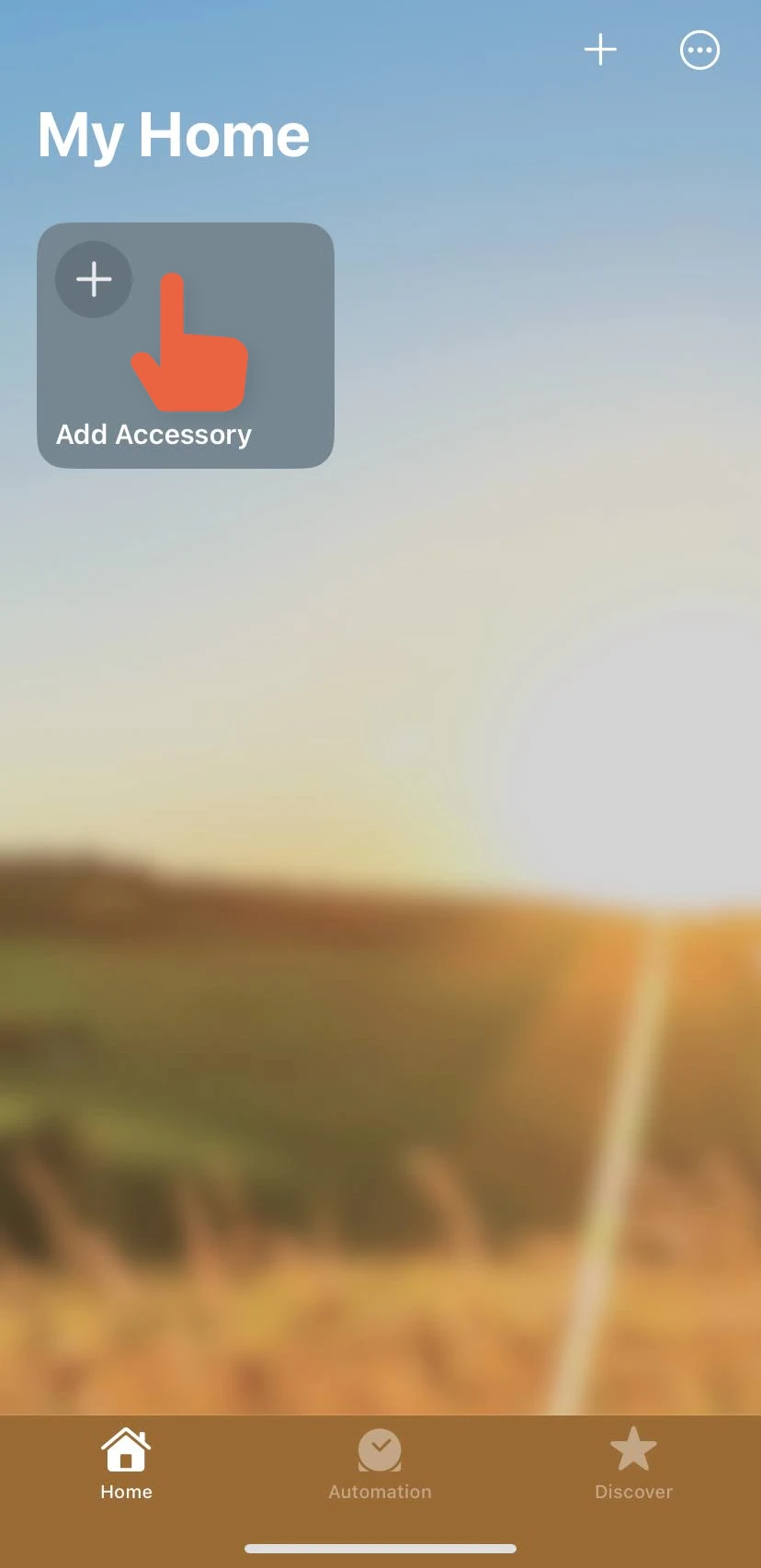
Once you get to the start screen, tap “Add accessory” to start the setup process:
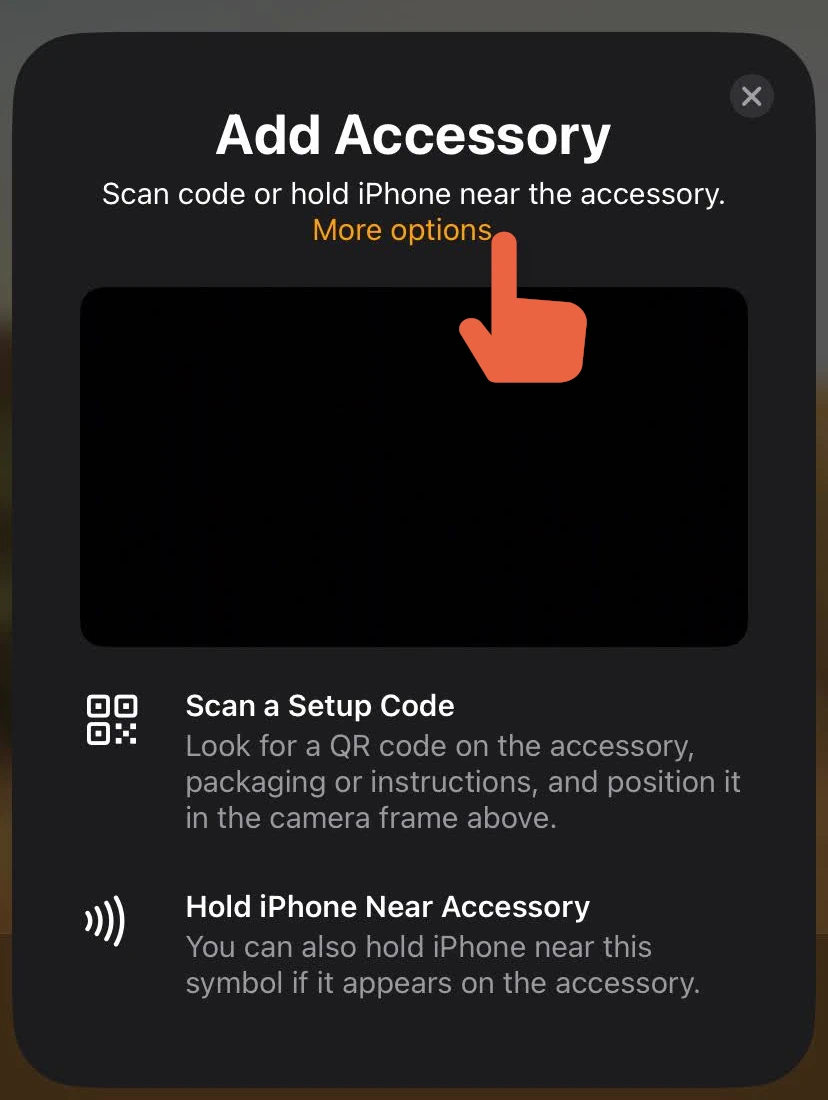
This will open the Add accessory dialog. Next tap on “More options…”: (you might have to tap it multiple times)
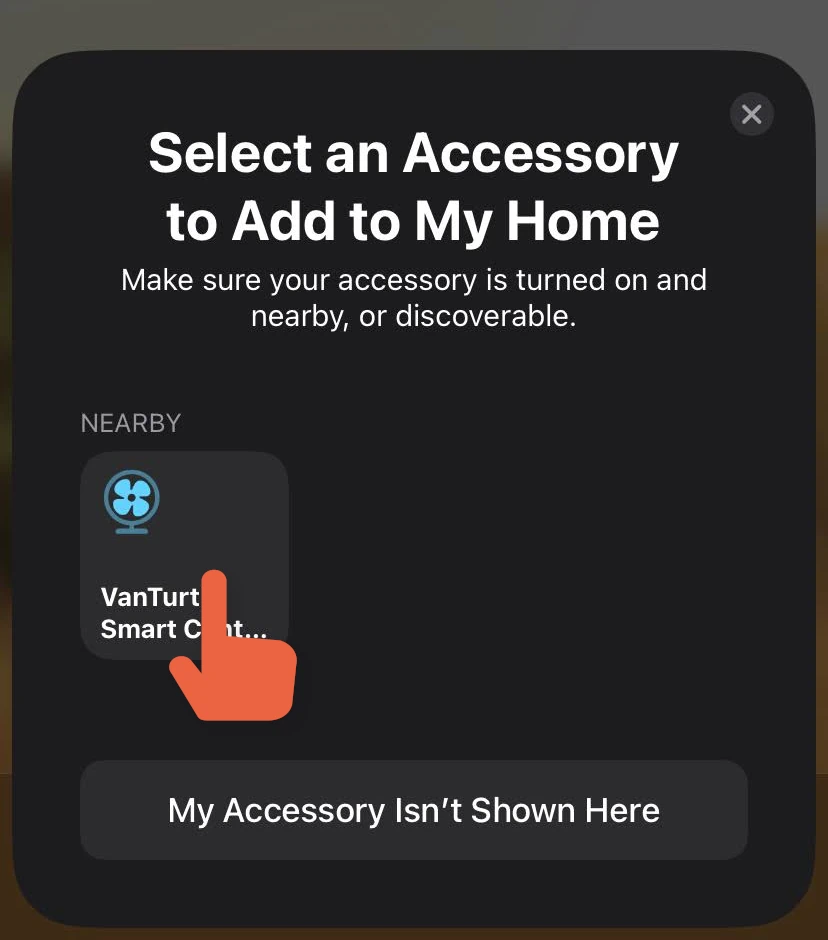
You should now see a device with a fan icon and the name “VanTurtle Smart Controller” in the list of available devices. Tap this device.
If all that shows is a loading icon, try exiting the dialog by pressing the X and starting over. If it happens multiple times, check that the controller is on and that no other devices are connected to it. If the controller was paired with another iPhone before you may have to reset it first before it can be paired again.
You will be able to see the code input for a few seconds, and then a popup appears with the title “Uncertified accessory”. Tap “Add anyway”.
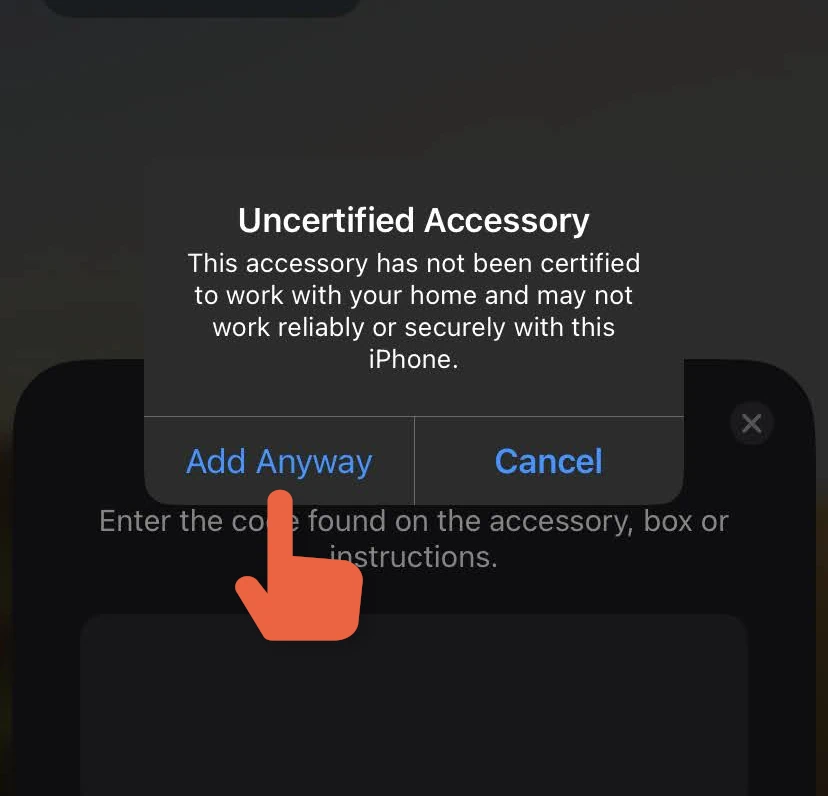
Now enter the 8-digit pairing code that was supplied to you when you ordered the controller. It might also be written on the back.
If you have lost the code please send us an email! We might be able to recover it for you.
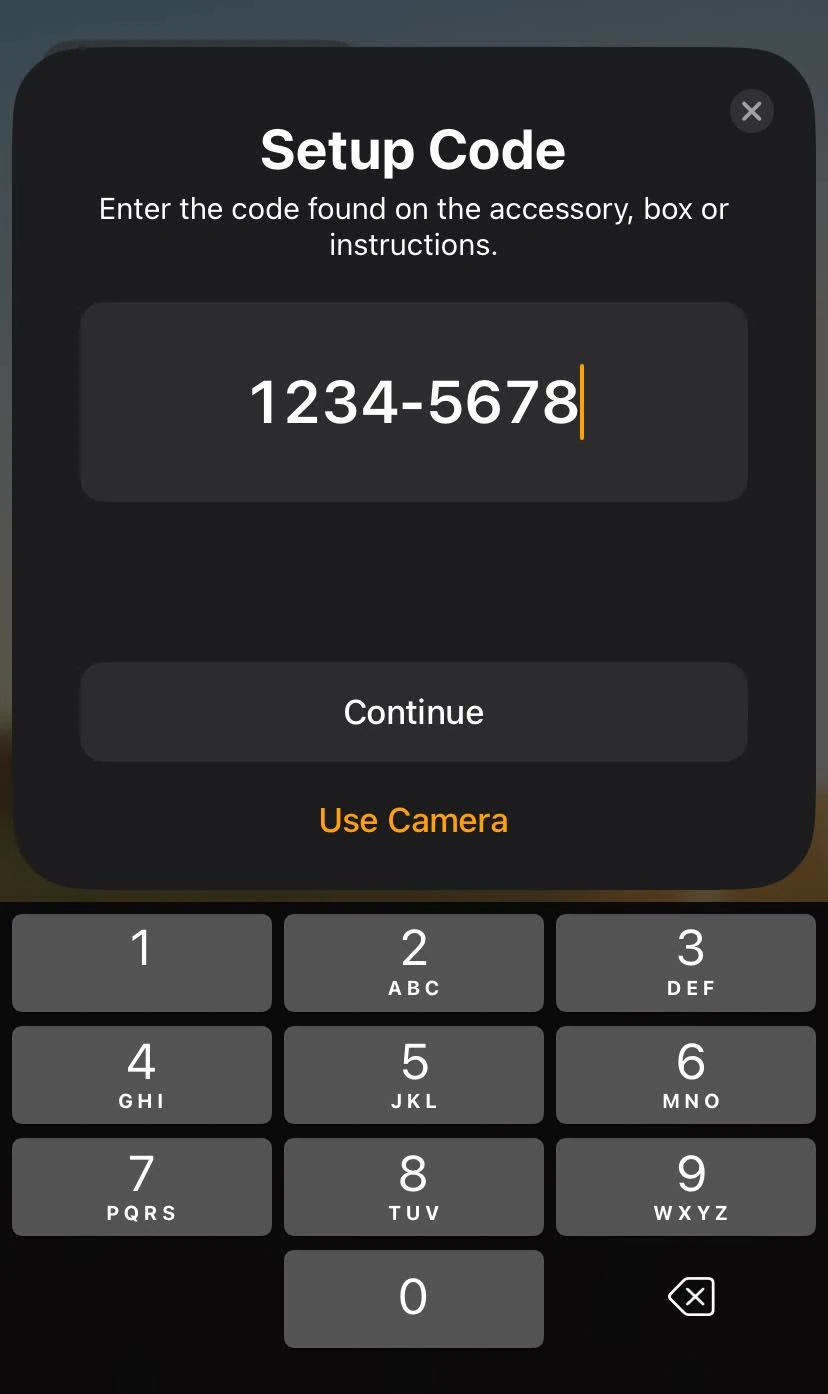
Then you iPhone will start verifying the pairing code and exchanging cryptographic signatures so communication can be secured. This can take up to 20 seconds.
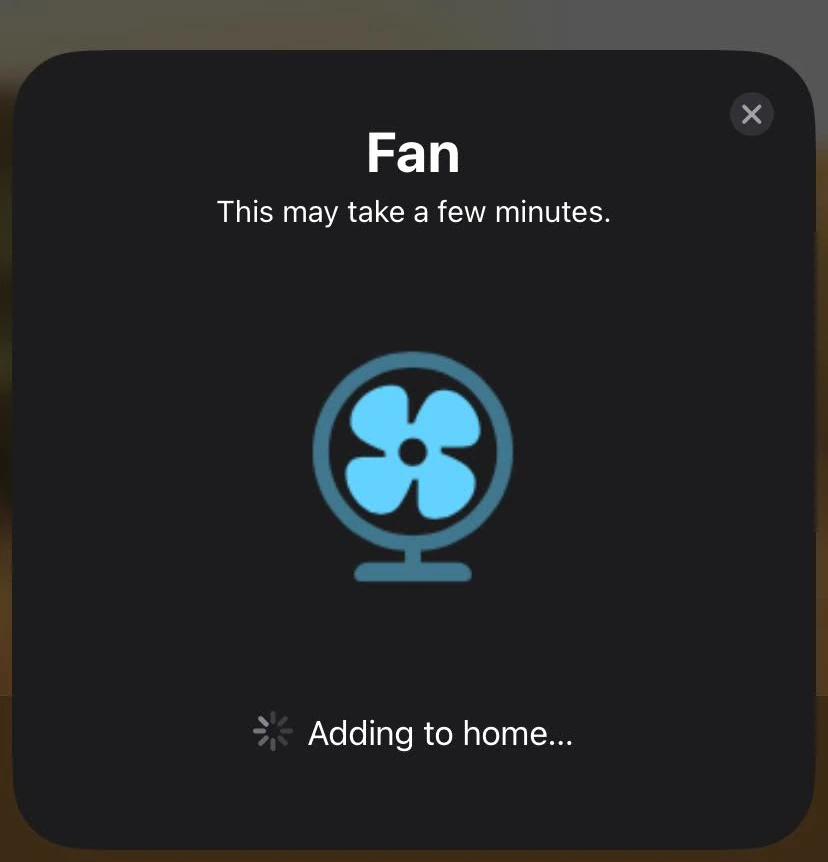
Next you can give your fan a more friendly name (like “forward fan”, “van fan”, etc) and decide in what room it is placed. Tapping “Identify” at this stage should make your fan beep.
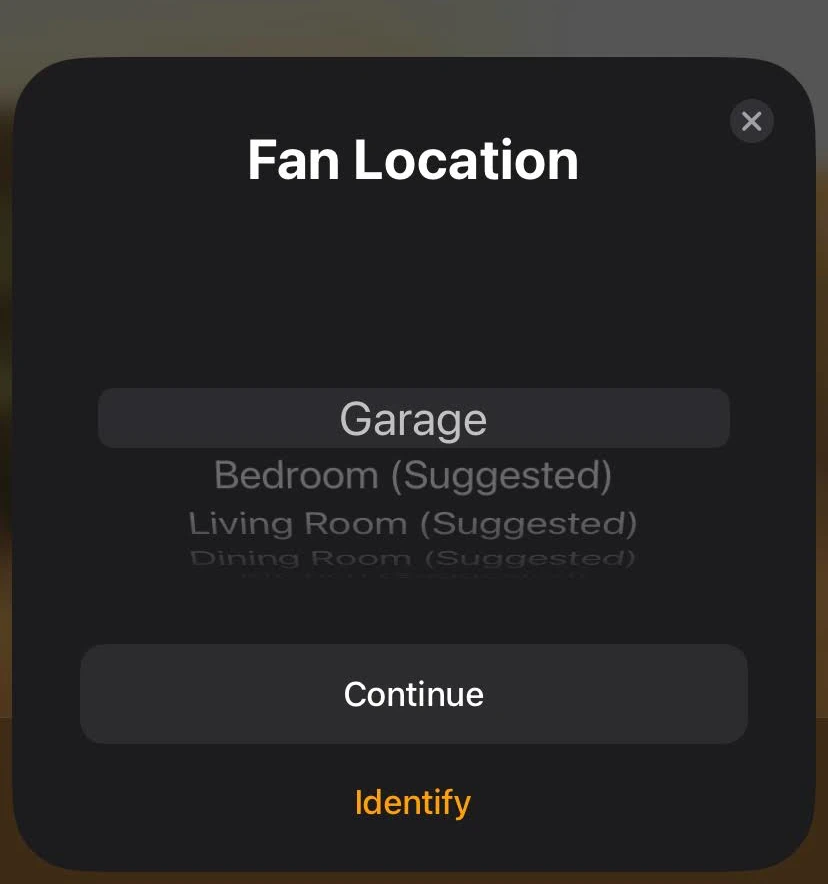
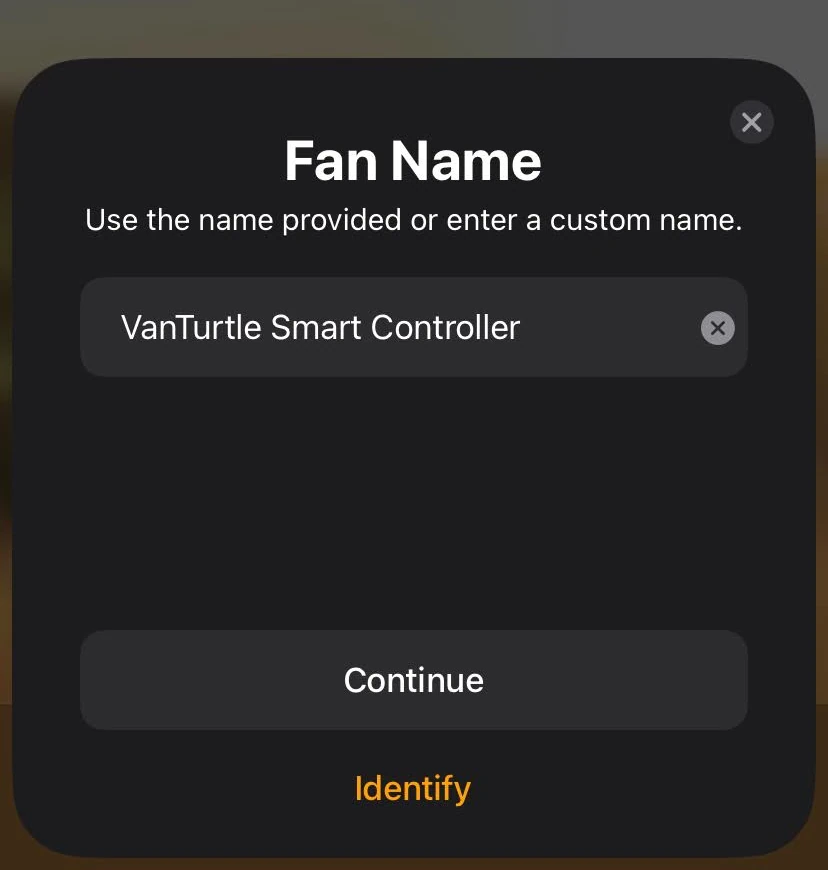
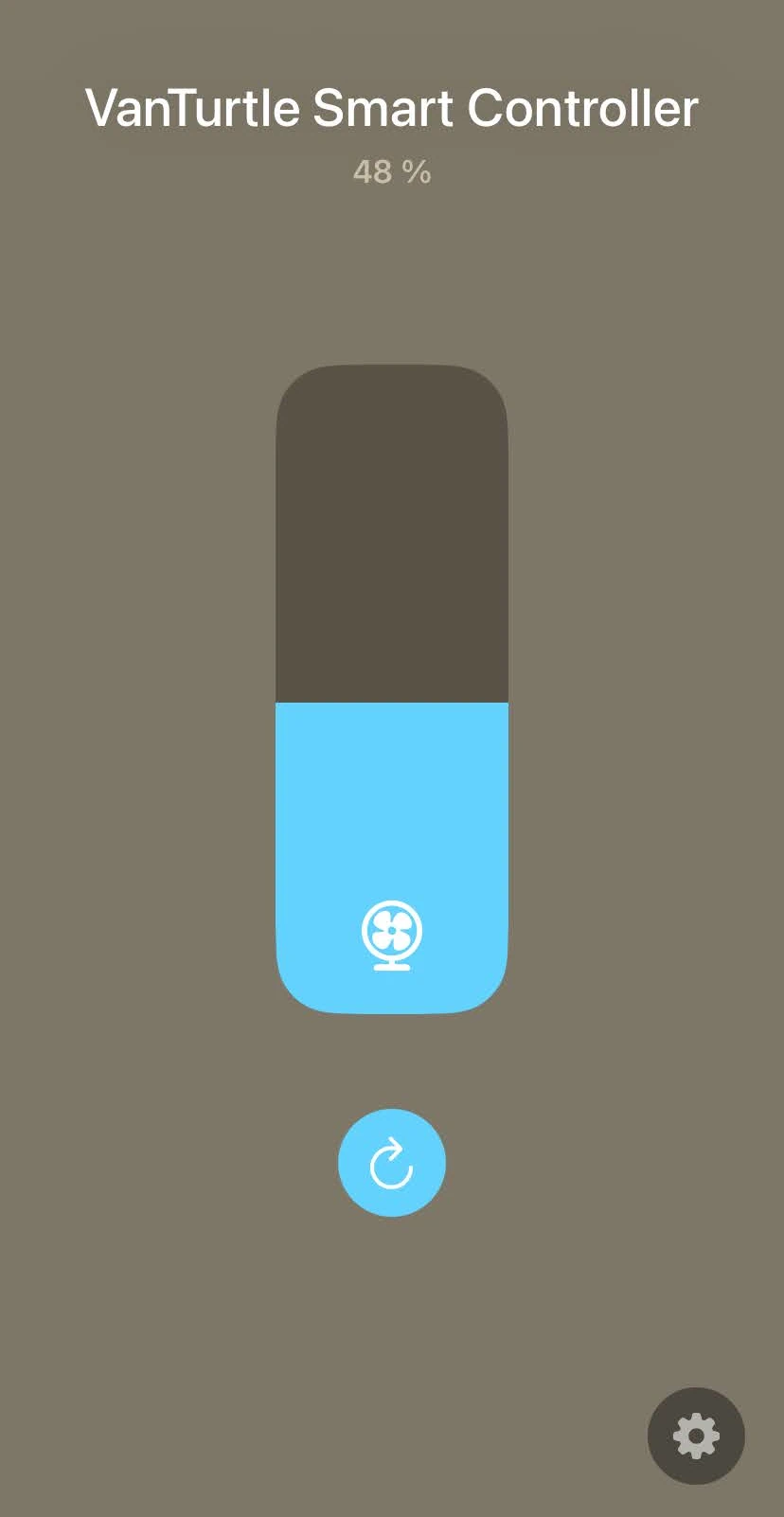
And that’s the setup complete! It may take a few seconds for the controls to show up properly in the Home app.
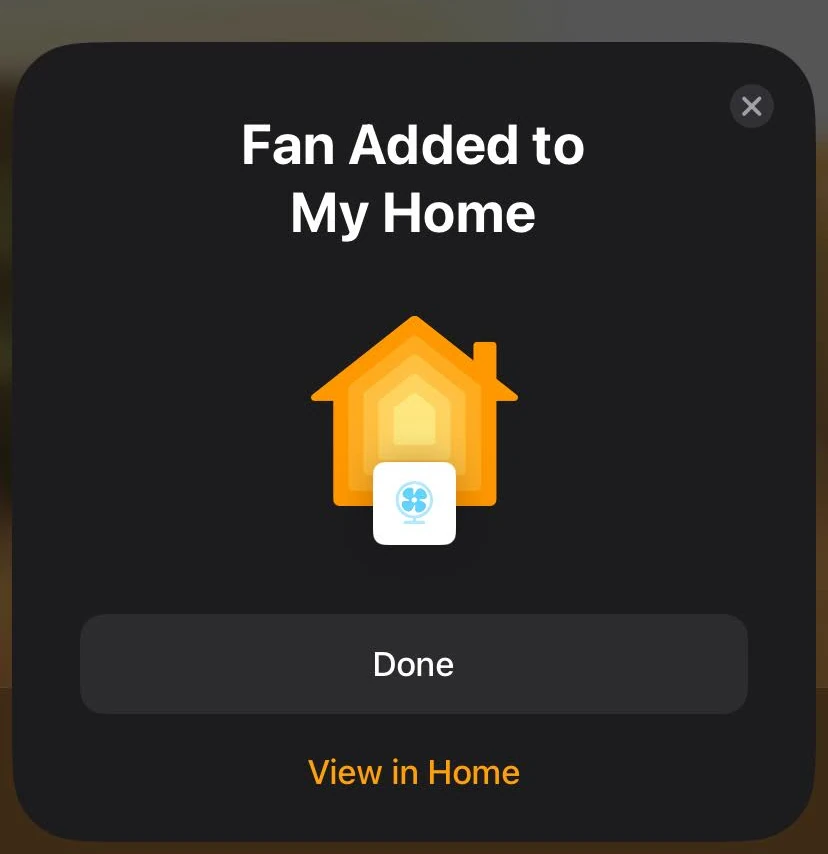
You can now add the Home widget to your control center to control your fan form anywhere on your phone!
Android
On Android pairing is done via our very own app. Because of distribution costs this app can be downloaded from this website as an .apk file and installed on your device. You might have to enable installing apps from unknown sources. The app has minimal permissions and cannot access the internet.
Or scan this QR code on your phone to download:

Once it’s installed, open the app and agree to give it access to nearby devices. Without this permission the app is unable to scan for Bluetooth devices. If you accidentally denied the permission you can revert that in the apps system settings.
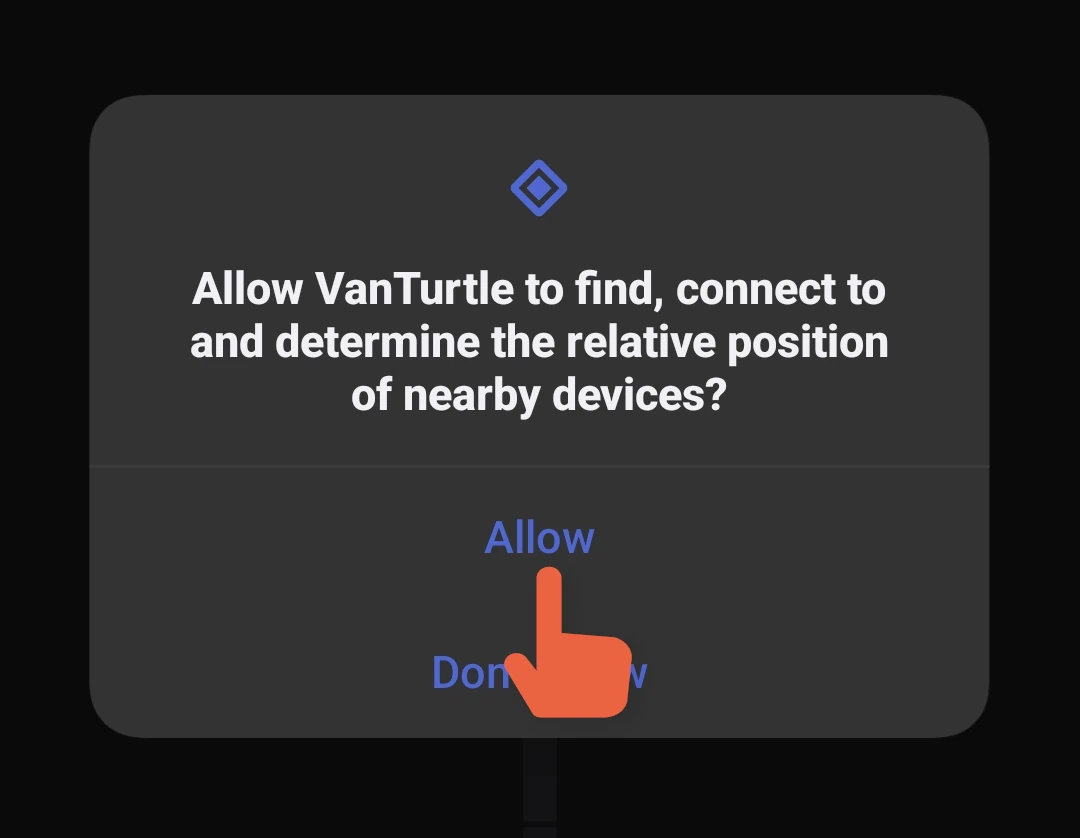
The app will then start scanning for controllers. If it finds one it will open the pairing code screen. Enter the 8 digit code we gave you when you placed your order. It might also be written on the back of the controller.
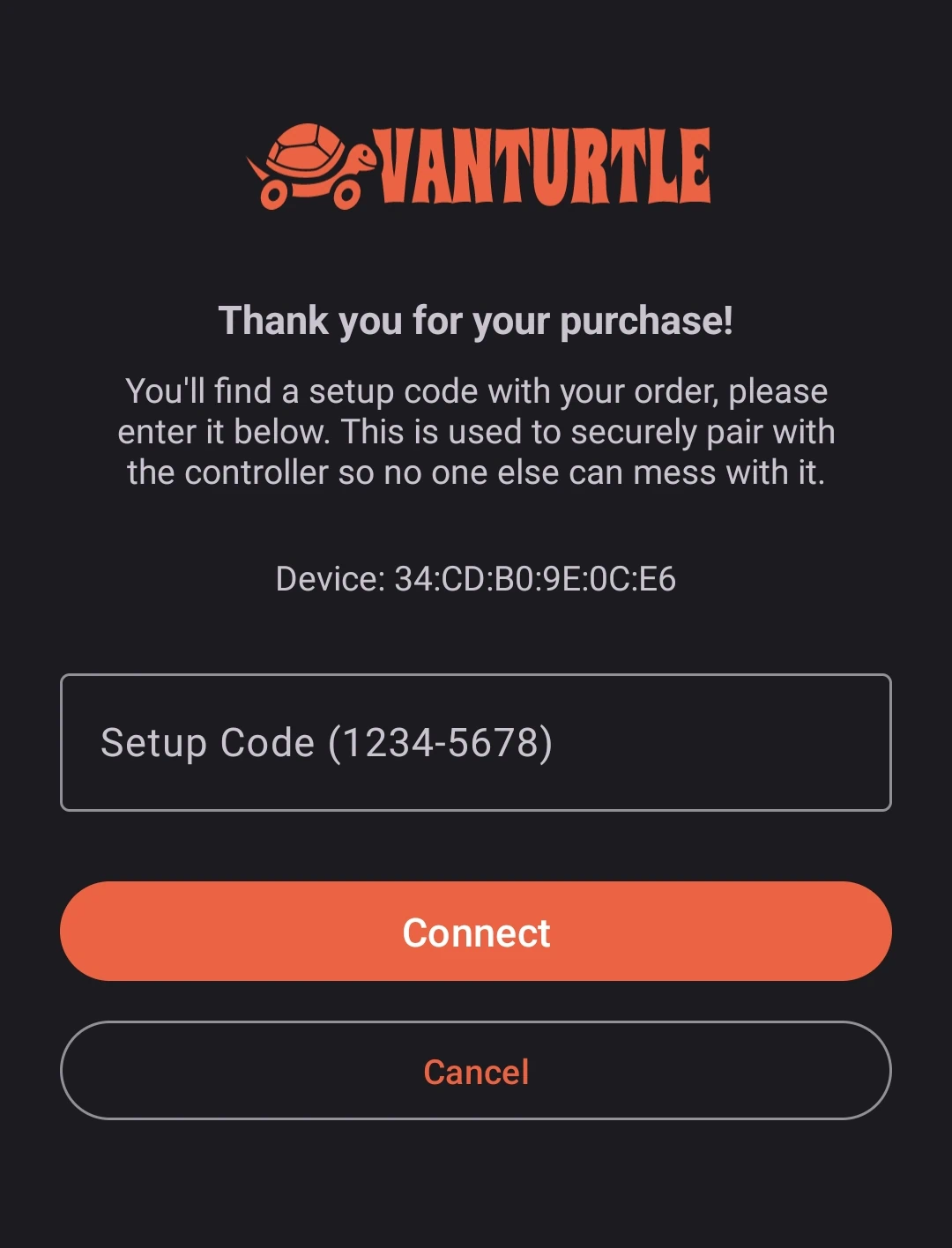
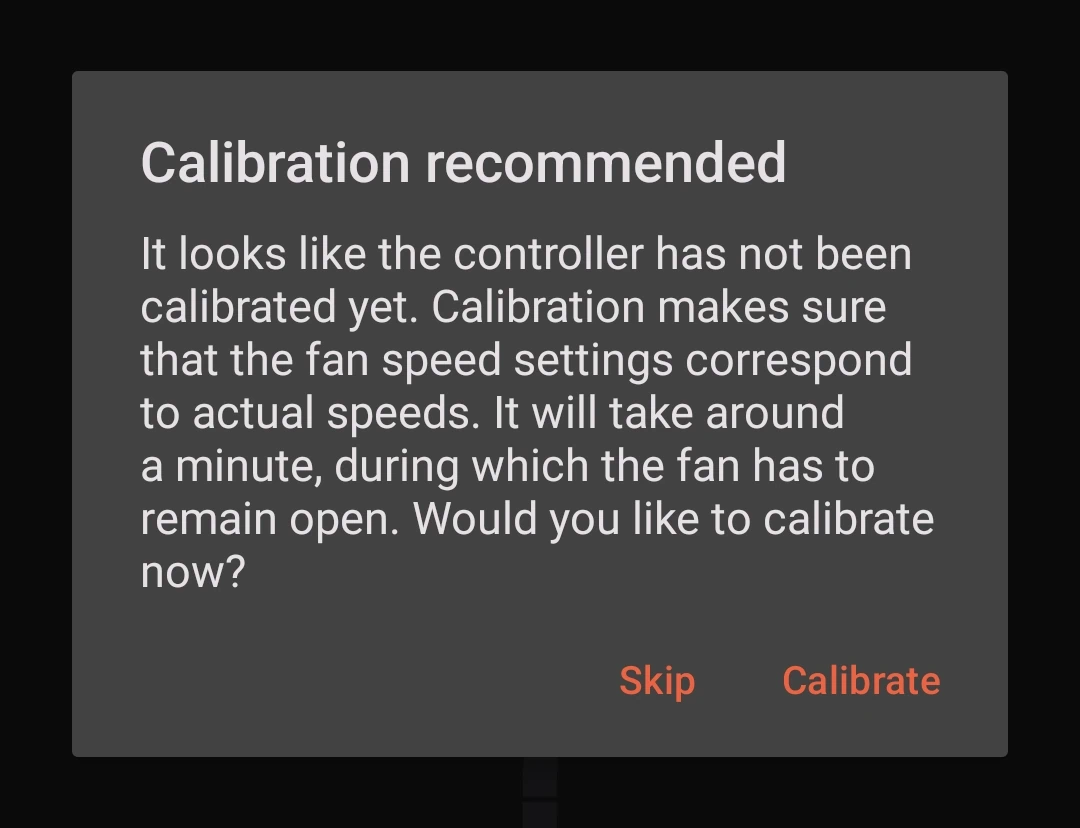
After entering the correct pairing code you will be able to control your fan! The app will ask you to run a calibration if you have not already done so. You can also add smart home controls, quick settings tiles and home screen widgets to make it even easier to send commands to your fan.